
Stuck and cannot get past the Hardware Test on a Windows Device?
Here is a step by step guide to check your device permissions on your Microphone and Camera:
Step 1 - Press Windows key + R:
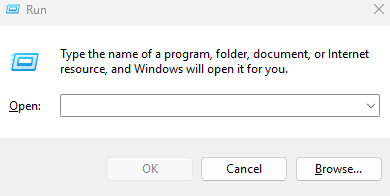
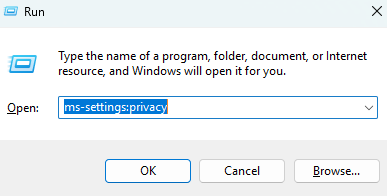
Step 2 - When the run dialogue appears enter "ms-settings:privacy":
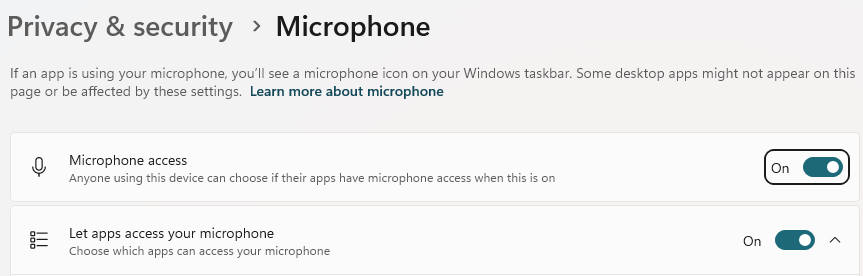
Step 3 -Make sure "Let apps access your microphone" is on:
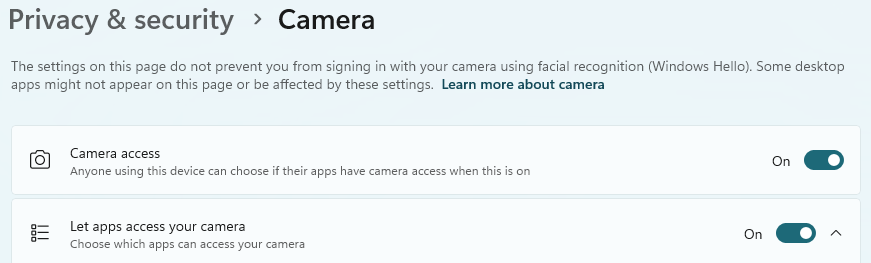
Step 4 - Make sure "Let apps access your camera" is on:
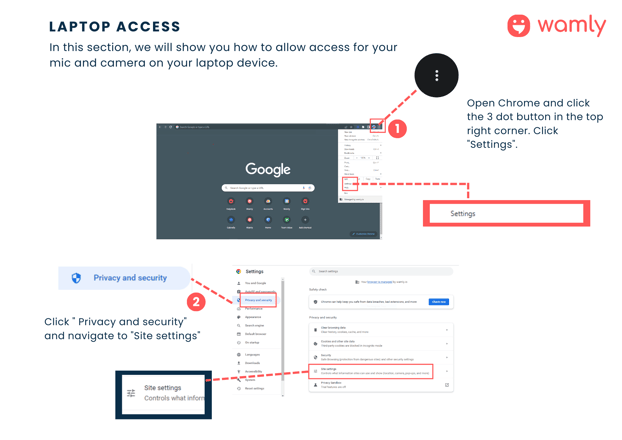
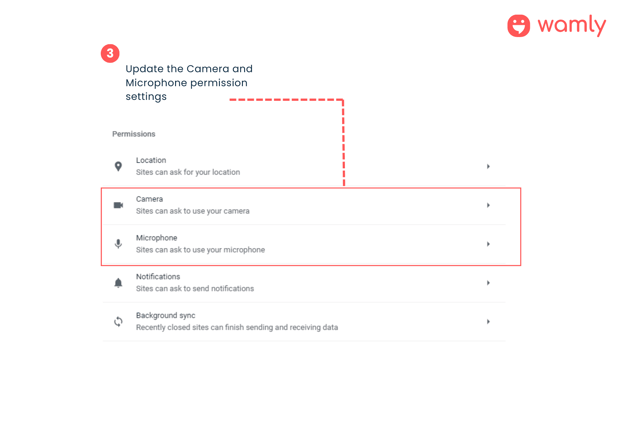
Here's a step-by-step guide on how to access and modify the camera and microphone settings in your Chrome browser:
Step 1: Open Chrome and click the 3 dot button in the top right corner, click on "Settings"
Step 2: Click "Privacy and Security" and navigate to "Site Settings"
Step 3: Update the Camera and Microphone Permission Settings to "Allow".
You can also click Get Help on the device check screen for step-by-step guidance, without losing your place in your application.