
Keep track of your applications, see which steps you still need to complete, and pick up where you left off, all in one place. Your Wamlyjobs profile keeps everything together, so you don’t have to wonder whether your application went through or which one still needs your video interview.
Here’s how it works.
Step 1: Create your account
You only need to do this once, and it takes about a minute. Once you’re in, your details are saved for future applications, so you can spend less time typing and more time job hunting.
Here’s how it works:
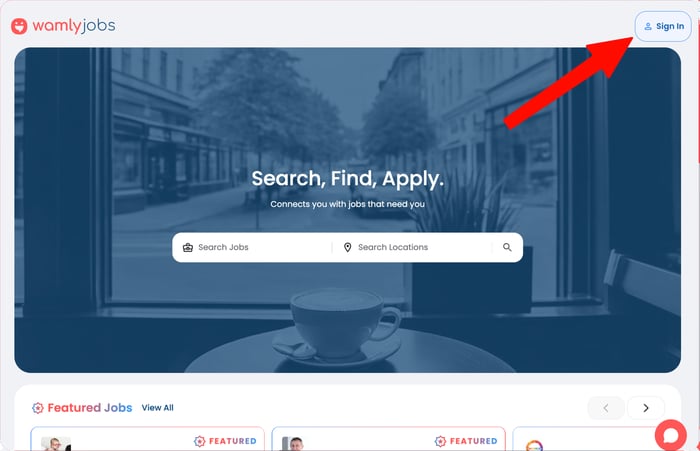
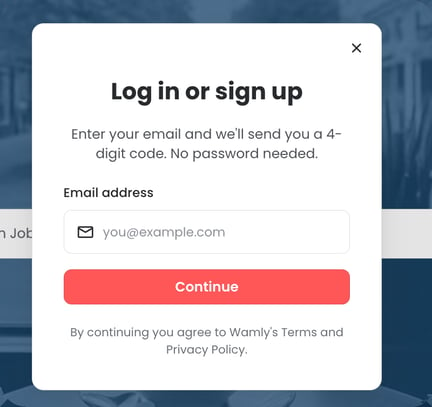
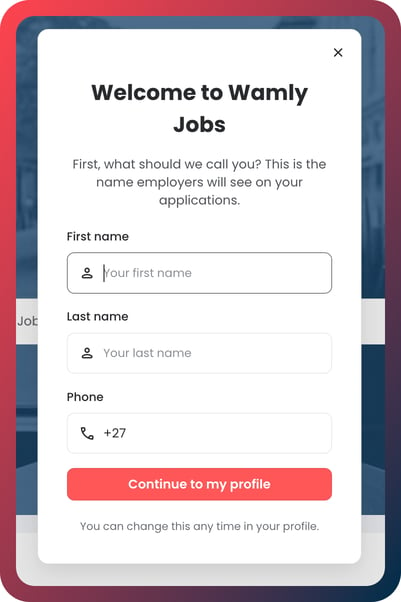
- Head to jobs.wamly.io and click Sign In in the top-right corner.
- Enter your email address.
- We’ll send a six-digit verification code to your inbox. Enter the code on Wamlyjobs to continue.
- Now tell us three things about you: your first name, last name and mobile number.
- Tick the box to accept the Terms of use and the Privacy policy. You only need to do this once.
- Add a profile photo if you’d like to. Totally up to you!
And that’s it. You’re in!
Your name and mobile number are the same details you’ll need for your job applications, so you only have to add them once. From there, they’ll already be waiting for you the next time you apply.
Applied for a job through Wamly before? We may already have some of your details. If we do, you’ll skip the profile setup and get straight to your account.
Step 2: Your Home page
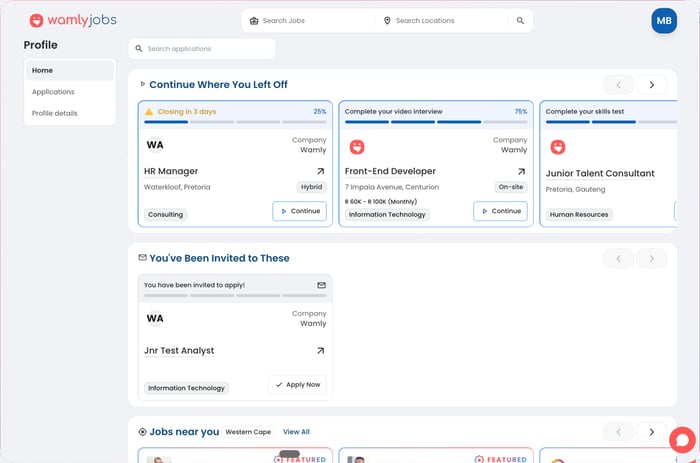
When you sign in, you land on Home. This page answers one question: what should I do next?
It has three rows you can scroll sideways.
Continue Where You Left Off: Jobs you started but did not finish. Maybe you filled in the form but still owe a video interview. Click Continue and you go straight back to the right spot.
You’ve Been Invited to These: Jobs a company invited you to, that you have not started yet. If that invite email got lost in your inbox, you will finally see it here. Click Apply now to start.
Jobs Near You: New jobs close to where you are. Great if you want to spend less on taxi fare or petrol. We work this out from your general area, so treat it as a good guess.
Nothing in the first two rows? Then you are all caught up. Nice work. Have a scroll through Recommended for you.
Step 3: My Applications
Click Applications to see every job you have applied for or been invited to.
Each one is a card. The coloured band at the top tells you where things stand.
- In progress: You started, but something is still missing. The band tells you what is left and shows how far you have got. Click Continue to resume your application.
- Submitted: You are done. Everything is in, and it is with the company.
- Invited: A company invited you to apply for one of their jobs. Click Apply now to start your application.
- Closed: This job is no longer taking applications.
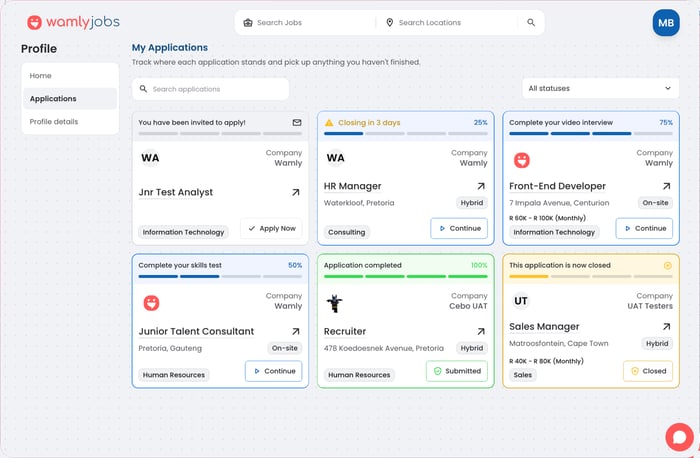
Watch out for “Closing soon”
If a job closes in the next five days, the card tells you. It counts down: “Closing in 3 days”, then “Closing today”.
See one of those on a job you have not finished? Go finish it. Do not lose a good job because you got busy.
Finding one job in a long list
Applied to a lot of jobs? We have got you.
- Use the search box to find a job by its name or the company name.
- Use the status filter to show only what you want: Invited, In progress, Completed or Closed. You can pick more than one.
- Use Applications per page to choose how many applications show on each page.
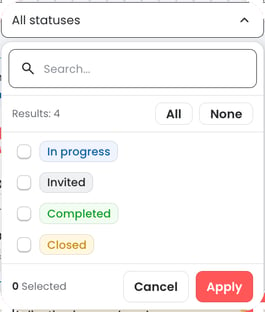
Your list shows the applications you worked on most recently first. Use the status filter to see only the ones that still need you.
Step 4: Your Profile
Click My profile to manage your own information. Your name, how to reach you, where you live, and your South African ID number or passport number. To choose the kinds of roles you're after, open Preferences; matching jobs then appear under Recommended for you on your Home page. Your email address cannot be changed here.
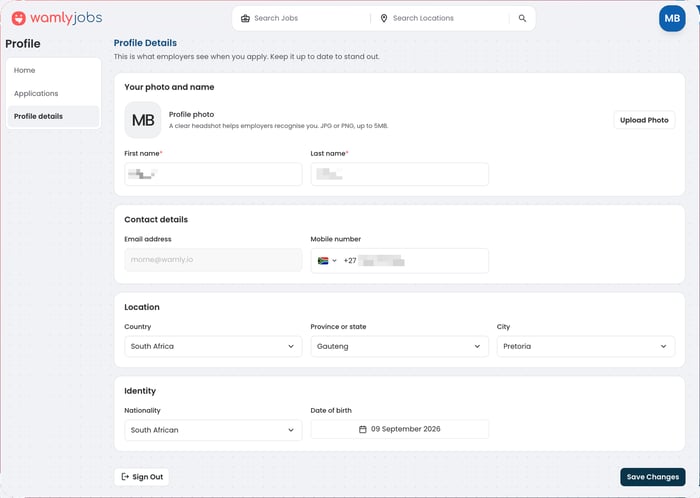
This is what a company sees when you apply. It also fills in your next application for you. So keep it correct.
Change something, click Save Changes, and you are done. If you try to leave the page before saving, we'll warn you so you don't lose your changes.
Want to sign out? The Sign out button is on this page too, next to Save Changes.
Signing in after that:
Signing in again is even quicker.
- Click Sign In in the top right corner.
- Type in your email address.
- We send you a fresh code. Type it in.
That is it. There is no password to remember, and no password to reset. We send you a new code every time.
Once you are in, the Sign In button turns into your photo, or your initials if you did not add one.
Always use the same email address. If you use a different one, your applications get split across separate accounts.
No code in your inbox? Check your spam folder first. Then click Resend Code (available after 60 seconds). If your code has expired, just ask for a new one.
On your phone
Everything above works on your phone.
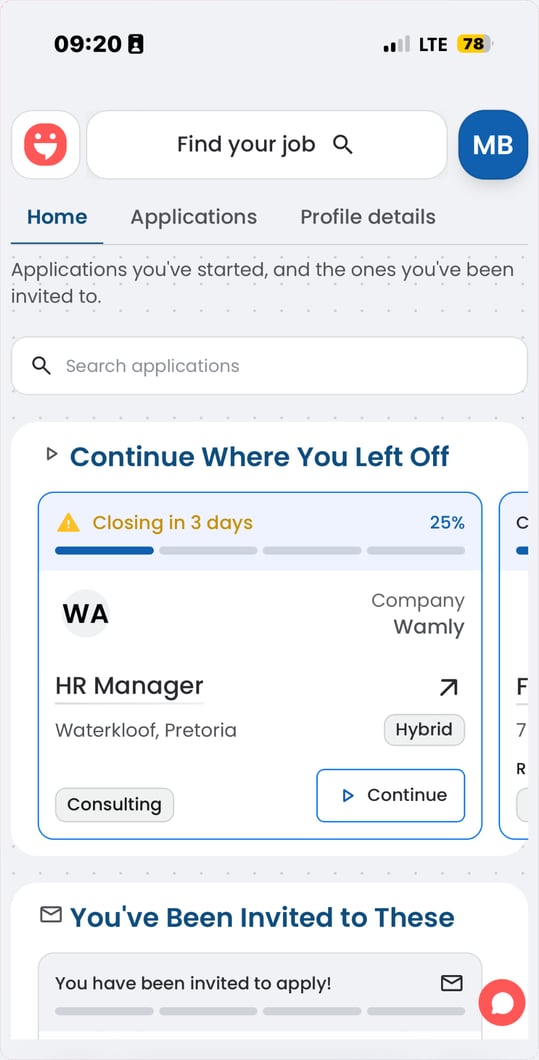
The four sections — Home, Applications, My profile and Preferences — sit as tabs just under the header. They stay there while you scroll. Tap a tab to switch.
A few good habits
- Use one email address. Use a different one each time and your applications get split across separate accounts.
- Get your documents ready first. Keep your ID, driver’s licence, matric certificate and CV as PDFs in one folder on your phone. Uploading them then takes seconds.
- Check in once a week. A quick look at your Home page catches anything closing soon, and any invite you missed.
- Give yourself time. If you still owe a video interview, set aside 30 minutes somewhere quiet with good internet.
- Prefer another language? Use the Language switcher in the footer to change the language Wamlyjobs is shown in.
Need a hand?
If you get stuck, look for the live chat on Wamlyjobs. Our support team is there to help. You can also visit the Candidate Area for FAQs and interview tips.
One thing worth knowing: Wamly is not the employer. We’re the platform the hiring happens on. Once your application is in, the company will contact you directly if they want to take things further.
Good luck out there. We are rooting for you!