
Wamly empowers seamless integrations with your HRIS with Standardised Stage Categories. A stage category is a permanent, organisation-wide classification that maps unique project stages to a universal status for consistent reporting and data tracking.
How does it work?
- Stages remain unchanged in the project view and fully customisable. You can add, remove, rename, and reorder them per project. (e.g. “First Interview”, “Final Panel”, “Credit Check”).
- Each stage will be mapped to exactly one Stage Category.
- If the category of a stage is changed, all candidates currently in that stage immediately inherit the new category.
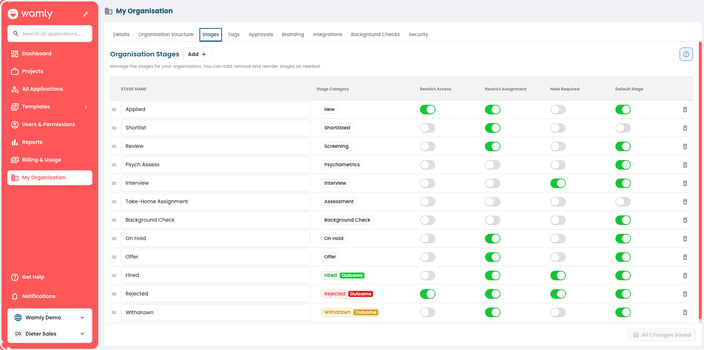
Stage categories from an organisational view .
Understanding Stage Categories
A stage category is a defined classification that describes the meaning of a stage. Stage categories are:
- Not editable.
- Cannot be deleted.
- Exists at an organisational level and can be used across multiple projects.
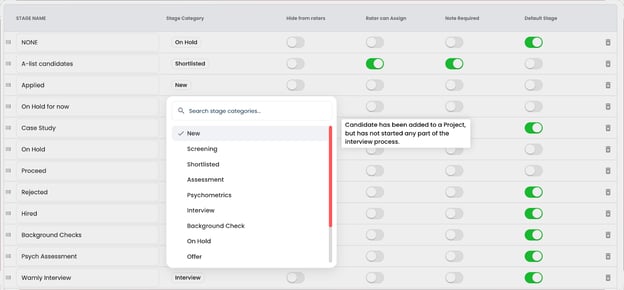
Select the appropriate category from the dropdown . Hover over any category in the list to see its definition and intended use.
List of Stage Categories
There are 12 stage categories: New, Screening, Assessment, Psychometrics, Background Check, Shortlisted, Interview, Offer, On Hold, Hired, Rejected and Withdrawn.
Withdrawn, Hired and Rejected are marked as “outcome” stage categories which define the final stages in a pipeline.
Creating a New Stage
Creating a new stage within a project follows the same logic. To begin, open the Stages tab in your project setup, click Manage next to Application Stages and then click Add. In the Add stages window click Add again, enter your custom stage name (up to 20 characters), select the most relevant Stage category from the dropdown, and click Add. The new stage is also added to your organisation’s stages. Click Done, then Save Changes to save your changes.
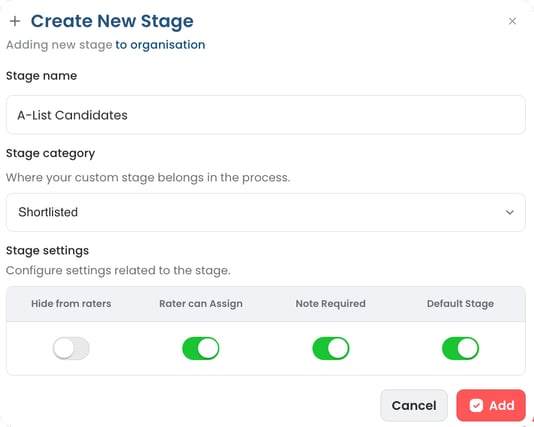
Creating a stage within the project view.
It’s as simple as that! If you have any questions or need a hand getting set up, feel free to reach out to your Account Manager, we’re here to help.
For how access and roles work at each stage, see Exploring Stage Permissions.
- The Wamly Team