
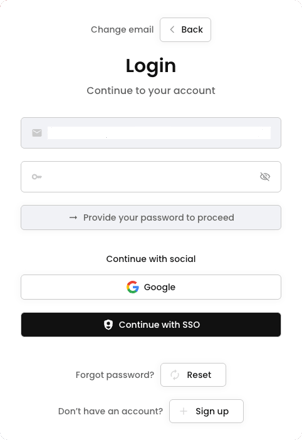
We're excited to help you enhance your organisation's security and simplify your team's login experience. Single Sign-On (SSO) allows your team to access Wamly using your company's existing identity provider (like Azure AD, Microsoft, or Google Workspace). When enabled your users will be able to login by selecting “Continue with SSO” as shown below.
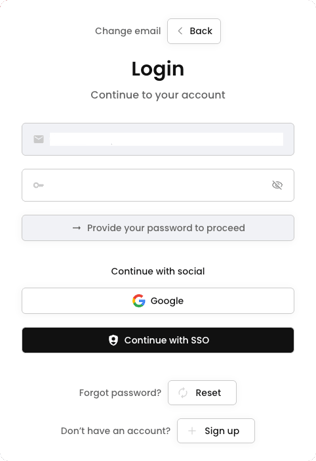
This guide is for users with permission to manage Single Sign-On (SSO) settings, in an organisation whose package includes SSO. If your package does not include SSO, please see the final section.
The setup process involves two main parts: setting your unique organisation domain name and then configuring the SSO connection.
Part 1: Set Your Organisation Domain
Before you can enable SSO, you must first claim a unique domain name for your Organisation. This is how our system knows where to send your users when they try to log in.
- Navigate to My Organisation from the main menu.
- Click on the Branding tab.
- Scroll down to the User Portal section.
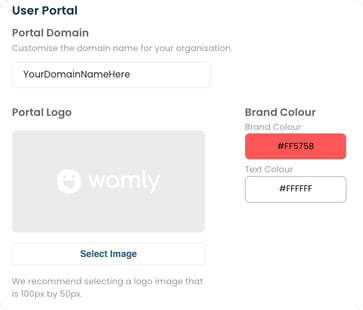
- In the Portal Domain field, enter your organisation's unique domain.
What is this? This is typically the part of your email address after the "@" symbol. For example, if your email is sam@companyABC.com, your domain name could be companyABC. However, the choice is yours depending on the naming convention of your organisation and subsidiaries.
- Click Save Changes at the bottom of the page to save your changes.
Part 2: Enable and Configure SAML SSO
Once your domain is saved, you can enable the SSO feature and get the information your IT team needs.
- Navigate to My Organisation, click on the Security tab.
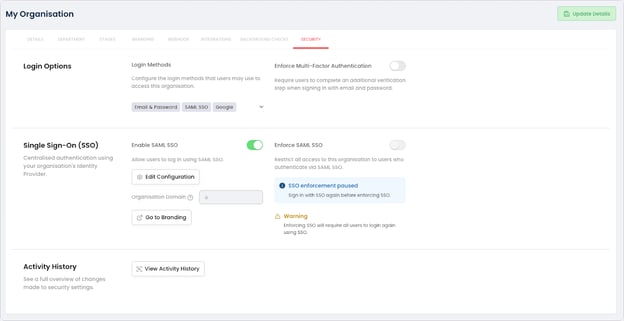
- Find the Single Sign-On (SSO) section.
- Click the toggle to Enable SAML SSO. (If your domain name is not yet set the below notification will appear. Navigate back to branding and set the domain name.)

- With SSO enabled, new options will appear. (Edit Configuration) or the configuration window will open automatically if this is the 1st time.
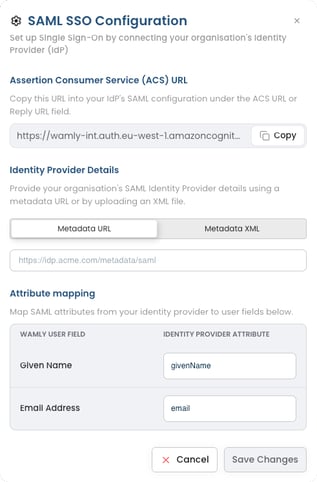
- The below pop-up will appear with your unique SAML configuration details. Work with your IT department to configure SSO settings on Wamly using your own Identity Provider.
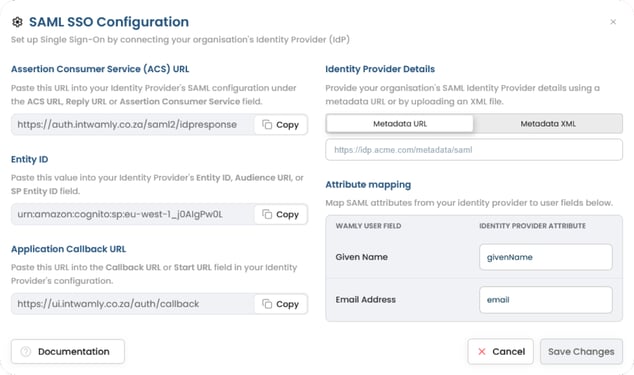
- One your Enterprise Workspace Login Service (Identity Provider, IdP) you will need to configure a new Application.
- Depending. on your IdP-, you will need to configure the following on the new Application (copy this from the Wamly's SAML configuration modal):
- Assertion Consumer Service (ACS) URL.
- Entity ID, SP Entity ID or Audience URL.
- Application Callback URL which might be called the Application Start URL.
- Then Copy either the Application MetaData Url or Download the Metadata xml file from your IdP or download the Metadata xml file from your IdP and upload it to Wamly.
- Lastly confirm your IdP's Attribute mapping matches Wamly's attribute mapping for the User's givenName (or any Name field) and Email Address.
- After Saving Changes you will need to Login with SSO in order to Enforce SSO, to make sure it works.
In MS Azure, it may not be obvious which specific field needs to be entered to complete the attribute mapping. For both Given Name and Email Address, the client must not use the Value in Azure, but must look at the Claim Name.
Claim Name:
http://schemas.xmlsoap.org/ws/2005/05/identity/claims/EmailAddress
http://schemas.xmlsoap.org/ws/2005/05/identity/claims/givenName
Part 3: Manage and Enforce Your Login Methods
After your IT team confirms the connection is active, you can decide how your team logs in.
- Return to the My Organisation > Security tab.
- You have two main options for enforcement:
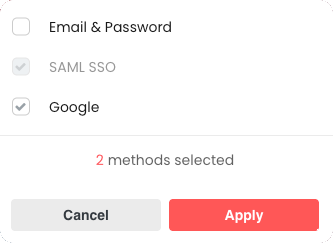
- Manage Login Methods: In the Login Options section, click the dropdown under Login Methods. You can deselect "Email & Password" to ensure users must use either SSO or Google to log in.
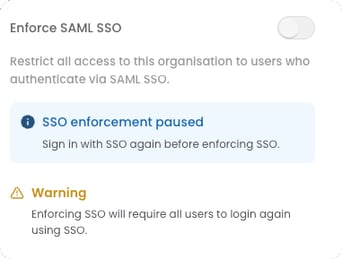
- Enforce SAML SSO: For the strictest security, you can enable the Enforce SAML SSO toggle. Please note that you need to first login with SSO to enable this feature.
Warning: As the platform notes, enabling this will require all users in your organisation to log in again using only SAML SSO.
What Your Team Will See
Once you've enabled SSO, your team's login experience will change.
- On the Wamly login page, after entering their email address and clicking Continue, they will see a Continue with SSO button. If SSO is the only login method, they go straight to the next step.
- When they click it, they will be asked to confirm the Organisation domain you set up in Part 1. Wamly pre-fills it from their email address, so they may need to change it, then click Confirm.
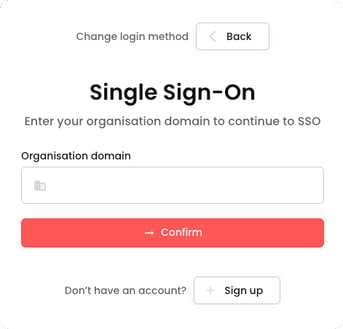
After confirming, they will be redirected to your company's familiar login page to authenticate, and then automatically logged into Wamly.
Not on an Enterprise Plan?
If you are on our Professional or Essential plan, you will still see the Single Sign-On (SSO) option on the Security tab.
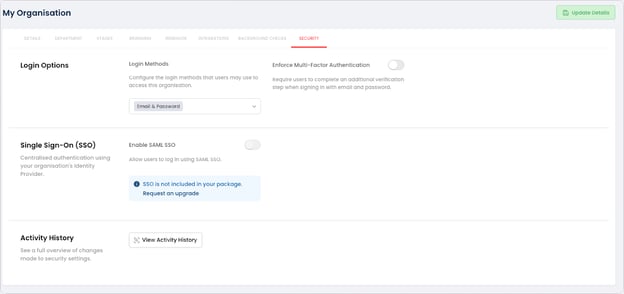
Instead of the Enable SAML SSO toggle, you will see the message "SSO is not included in your package." Click Request an upgrade and one of our account managers will be in touch. SSO is a key part of our Enterprise offering, designed to give you advanced control over security, access, and compliance.
Ready to simplify your security? Please contact your account manager to discuss upgrading and unlocking SSO today!