
Project Overview
While viewing a project you will be able to see comprehensive details about it:
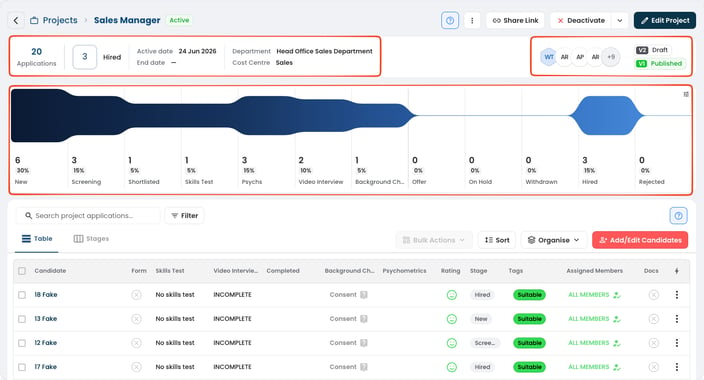
- The Status of the project is visible at the top left after the title of the project (Active, Inactive, Draft, Archived).
- At the top left section under the name of the Project is the total number of Applications as well as how many have been converted to Hired (by changing the Stage of an application to Hired). If the Project is Active there will be a Start Date listed, if there is no closing date it will be seen as an “Open Project” with no end date. The Project’s Department and Cost Centre are also listed.
- At the top right of the screen the Project Team (members) is shown, along with the project specification (Spec) status, such as Draft, Pending, Approved, Rejected, Published or Unpublished. Clicking on this area will bring up the list of the Project Team as well as other users that can be added to the Project based on their Permissions.
- Below the Project Detail is a graphic representation of your Project Funnel. This lists how many candidates and the Percentage thereof are in each Stage of the Project. Clicking on any Stage in the Funnel will reflect only those Candidates from within that Project Stage.
If you cannot find a particular candidate, double check if you have active filters on your Funnel Graph as this may be hiding other applications from a different Stage.
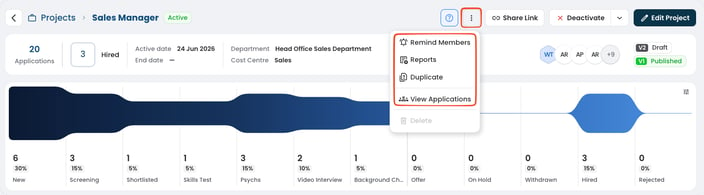
Clicking the ⋮ button at the top right of the screen (next to Share Link) opens a menu with the following functions:
- Remind Members: This is to remind the raters allocated to the project that they have candidates that have applied to the project that still require rating.
- Reports: This is where you will be able to generate comprehensive and detailed reports on your project applicants which will be emailed to you and can be downloaded at a later date.
- Duplicate: This will make a copy of the original Project and its settings only. If the project setup is completed you can click on the Request Approval button at the bottom left.
- View Applications: This will take you to the rater screen for candidates in the project.
There are action buttons at the top right to:
- Share Link: Clicking on this will provide you with the interview link to send out to Candidates to apply to the Project. (This is only available for projects that have already been activated).
- This is followed by the Activate, Deactivate and Archive Status actions for a Project.
- Edit Project: Here you will be able to edit your project and make changes to it. Once a project is activated or receives an application, certain fields cannot be changed, such as the Department or specific form fields. You can still change the video interview questions: each change saves a new version, and candidates keep the version they started with. Switching the video interview on or off, and every question change, is recorded under View Activity History on the project's Video Interview tab.
- You are able to search for a candidate by name or email as well as filter by various options using the Filter button.
Table View vs Stage View
There are two Views available to you on a project, namely the Table View and the Stage View:
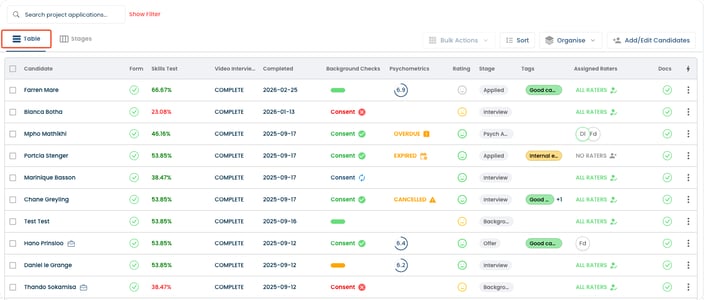
- Table View will show candidates in a list format detailing their name, has a form been completed, what the skills test (if applicable) result was, the video interview state, and the candidate's latest activity, relative Background check and Psychometric details will be visible if enabled on the project. The overall rating emoji and the candidate’s stage is also visible as well as tags assigned to the application. The assigned raters’ initials (or “All raters” or “No Raters”) is also visible and an indicator if documents have been uploaded. You are able to use the “Organise” action button to sort your Table View by Stage.
Candidate Activity shows the last time the candidate worked on their application, for example submitting a form, a skills test, a video answer or a document. Changes made by your team, such as stage, tags or ratings, don't change it. The Video Interview column shows No video interview when the candidate wasn't asked any video questions, otherwise INCOMPLETE, IN PROGRESS or COMPLETE. Hover over it to see how many questions are answered, for example 3/5 Questions Answered. To see when candidates completed their application, filter by Application Status and check their Candidate Activity date.
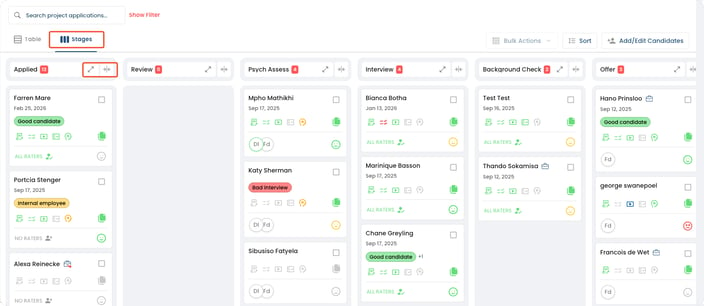
- Stages View is a Kanban/Board view ordered by the Stages set in the Project settings. Here you will be able to select and drag candidates to different Stages within the project as well as see the details available in the Table View. You are able to expand / contract a particular stage by using the “Arrow” Action Buttons.
What you can see and do in these views depends on your permissions and stage roles — you will only see the stages you’ve been assigned a role on. See Exploring Stage Permissions.
Bulk Actions
Bulk Actions become available when one or more candidates are selected.
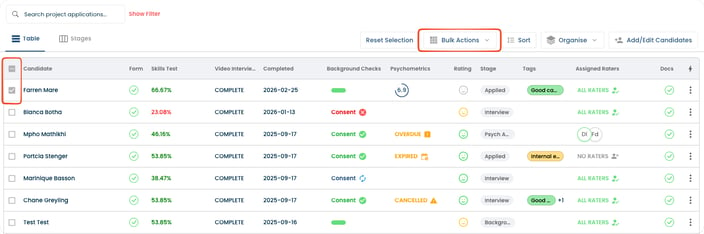
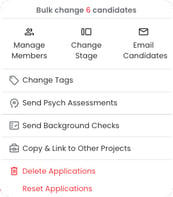
With Bulk Actions you are able to:
- Manage Members assigned to the selected candidates.
- Change Stages applied to the selected candidates.
- Send emails to the selected candidates.
- Change Tags associated with candidates.
- Action and Send Psychometric Assessments if enabled on the Project.
- Action and Send Background Checks if enabled on the Project.
- Copy & Link the selected candidates to other Projects.
- Delete the selected candidate applications.
- Reset a candidate’s skills test or video interview question(s).
With the Sort function you can sort your candidates by Candidate, Form, Skills Test, Video Interview, Candidate Activity, Psychometrics, Rating and Stage. Selecting any of these once will sort the relevant field Ascending. Clicking it again will sort the field Descending. A third click removes the sort on that field. You can only sort by one field at a time.
Add/Edit Candidates
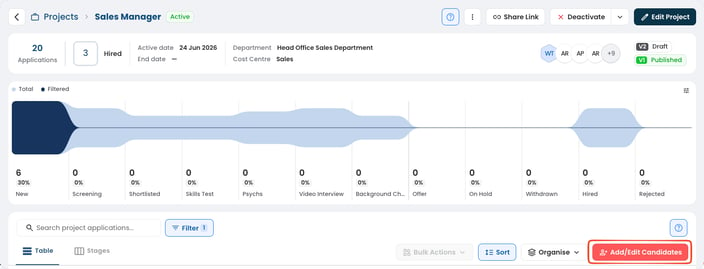
From either of the Project views you are able to click on “Add/Edit Candidates” on the right hand side of the Table:
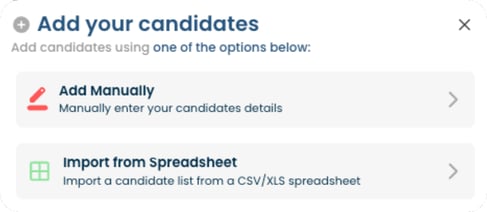
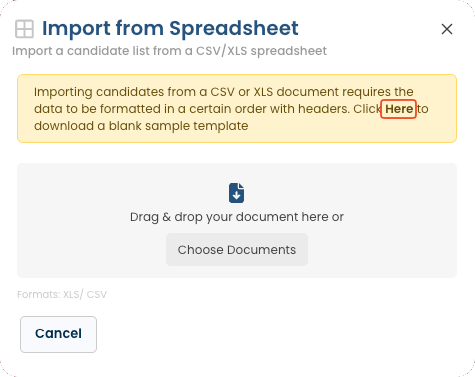
- You can either add the candidates manually or import from a CSV/XLS spreadsheet in the correct format by downloading the “Blank Sample Template”. You are able to download a copy of the template by clicking on “Here” as per the image below:
- You will require the Candidate’s First Name, Surname, Email and Mobile Contact number:
