
This guide provides the steps necessary to review and modify your organisation structure details within the platform. There are two sections namely Departments & Cost Centres.
Organisation Structure lives under My Organisation, which is available to users with the relevant organisation-level permissions (typically Organisation Administrators). Other users may see it but find it locked.
Key Impacts of Using Departments
- Segmentation: The main intention behind departments is to segment projects, ensuring that users assigned to one department cannot access anything related to another department.
- Flexibility: While typical departments (like Sales, Finance, or Marketing) can be set up, HR Partners may choose to use this feature to categorise different clients instead of internal departments.
- Application: Every project must be allocated to a department, and users get access to departments through Department-level roles.
Accessing the Configuration Panel
- Begin by navigating through the system interface.
- To access your Department details, navigate to the left-hand menu.
- Click on My Organisation to open the settings view.
- Ensure that the Organisation Structure tab is currently selected.
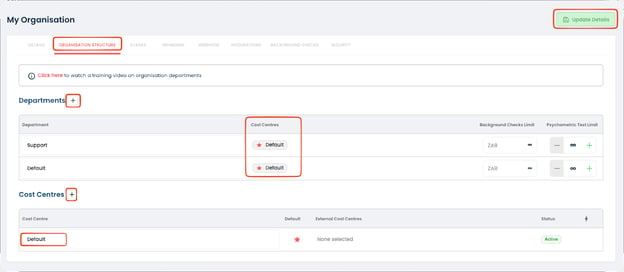
Setting Up and Applying Departments
Set up your departments here to replicate the structure of your organisation (e.g. the sales department, the finance department, or the marketing department).
You can alter this structure according to the specific needs of your organisation.
To create a new Department click the Add button. The number of departments you can create may be limited by your package.
Different Cost Centres can be allocated to different Departments, if no Cost Centres are added the “ Default” Cost Centre will be allocated to each Department.
If enabled, you are also able to set a limit to the number of Background checks and Psychometric Tests per Department.
Other Department Examples
- An "IT Support" project would be placed under the "IT Department".
- A “Key Account Manager” project would be placed under the “Sales Department”.
- A “Creditors or Debtors Clerk” project would be placed under the “Finance Department”.
- A "Marketing Communication Graduate" project would be placed under "Marketing" or "Undergraduates," depending on your organisation's internal setup.
Departments are also a required field under the Projects menu when you are creating a new project. User access to departments is set with Department-level roles in Users & Permissions.
Setting Up Cost Centres
Set up your Cost Centres here to replicate the structure of your organisation (e.g., the sales department, the finance department, or the marketing department).
To create a new Cost Centre click the Add button.
You do not have to set up Cost Centres as a Default will be allocated to each department at the creation of each Department.
Cost Centre Management
Cost centres are used to organise these transactions and are deeply integrated into the billing workflow:
- Allocation: When triggering a psychometric assessment or background check, users select which cost centre the transaction should be billed to.
- Restrictions: The available cost centre options are limited to those linked to the specific department of the project.
- Post-Transaction Changes: Only Project Admins have the authority to change the cost centre assigned to a transaction after it has already been processed.
Long Cost Centre names are shortened; hover over one to see the full name. Use the clear button to empty a Cost Centre search.