
Stages are the steps of your hiring pipeline, such as New, Screening, Shortlisted or Hired. This guide explains how to set up your organisation's stages, and how stages and automatic assignment work inside a project.
Key Logic and Configuration
- Customisation: You can add, remove and reorder stages to match your internal hiring pipeline.
- Project View: Stages are used in the project, where you can move candidates between them with drag and drop in the Stages view.
- Permissions: Adding, editing and deleting organisation stages needs the Organisation Stages permission in your role. See Exploring Roles.
Key Impacts of Using Stages
- Segmentation: The main intention behind Stages is to tag candidates, ensuring that progress is ordered and grouped. This can also be used in a “Funnelling” format to track the progress of the candidates that have applied in their different Stages.
- Flexibility: Can be customised freely to create unique stages like “Assess”, “Background checks”, “Interview Ready”, “Rejected”, “Hired” etc.
Setting Up Organisation Stages
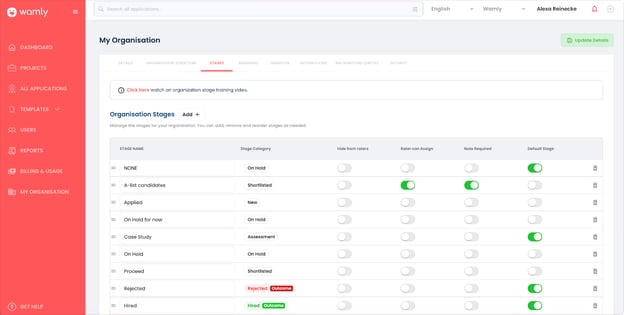
Step 1: Open the Stages Tab
In the left-hand menu, click My Organisation and open the Stages tab. The Organisation Stages table lists your stages in order. Drag a stage by its handle to reorder it.
Step 2: Add a Stage
Click Add. In Create new stage, enter a Stage name (up to 20 characters), choose a Stage category and set the stage settings, then click Add.
For more information regarding Stage Categories please refer to this article.
Step 3: Choose the Stage Settings
Each stage has these settings in the table:
- Stage Category - The type of stage this represents in the hiring process, regardless of its custom name.
- Restrict Access - Hides applications in this stage from users who only have the Unrestricted Stages permission.
- Restrict Assignment - Stops users who only have the Unrestricted Stages permission from moving applications to this stage.
- Note Required - Asks for a note whenever an application is moved to this stage, which is useful for visibility and feedback.
- Default Stage - Adds the stage to new projects by default. You can still change the stages for each project.
Step 4: Save Your Changes
Click Save Changes at the bottom of the tab. The button shows All Changes Saved when there is nothing left to save.
Deleting a Stage
Click the delete icon at the end of the stage's row. A stage that is in use cannot be deleted; Wamly tells you so and offers View Usages to show where it is used. Your organisation must keep at least one active stage.
Deleting a stage is permanent and cannot be undone.
Stages and Automatic Assignment in a Project
Each project uses a selection of your organisation's stages. Open the project, click Edit Project and go to the Stages tab. Click Manage to add, remove or reorder the project's stages, and set Automatic Assignment for each stage.
- Initial Stage: New candidates who are added or apply to the project start in this stage. Its automatic assignment cannot be switched off.
- Automatic Assignment: Wamly assigns the selected project members to candidates when their stage changes. Under Assigned Project Members, choose ALL PROJECT MEMBERS or specific members. Automatic assignment is off by default for the other stages, so you can, for example, bring senior interviewers in only at a final interview stage.
- Rater Inheritance: If a candidate moves to a stage where automatic assignment is off, they keep the members who were assigned to them in their previous stage.
- Rerunning Automations: When you save changes to assigned members and candidates are already in a stage with automatic assignment on, Wamly asks Do You Want to Replace Team Assignments? Click Overwrite Assigned Members to give those candidates each stage's current members, or Skip Automation to keep the existing assignments.
Overwriting resets the assigned members on every stage with automatic assignment on, not only the stage you edited, and replaces members you assigned by hand. It cannot be undone.
Who can see and rate candidates in each stage is set with stage roles. See Exploring Stage Permissions.
Stage Rules and Constraints
- Removal Restrictions: Once a stage has candidates assigned to it, it cannot be removed from the project.
- Notification Rules: Moving a candidate to a new stage does not trigger an automatic email notification to the assigned members. Notifications only trigger when a candidate first completes their application, provided that setting is switched on.