
If you've been assigned as a Project Manager on a project in Wamly, you may have noticed things look a little different. Don't worry, we've got you covered. This guide will walk you through your new experience so you can get straight to doing what you do best: launching projects and driving your hiring pipeline.
But first, a bit of context.
Have you heard about Permissions?
Wamly now gives your organisation complete control over what each person in the system can see and do. Permissions are essentially actions, like the ability to:
- View
- Create
- Edit
- Delete
Your organisation admin controls all of this. Want the full picture? Check out the Permissions How-To Guide for a deep dive.
A note on restricted access
If you ever come across a feature or section you can't access, that's your permissions doing exactly what they're supposed to do. It's not a system error, it's your organisation's access settings at work.
If you feel you need access to something that's currently restricted, reach out to your organisation admin and let them know. They'll be able to review and grant the appropriate permissions on their end.
What you'll see when you log in
Your admin has likely assigned you a Project Admin Seat and a Project Manager Role, which means your Wamly experience is focused on exactly what you need to manage projects.
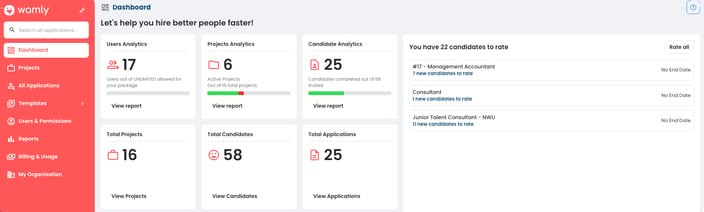
When you log in, you'll notice the menu looks a little different from what you might expect. Some areas, like My Organisation, Billing & Usage, Reports, Users & Permissions, and Templates, will be visible but may be locked, depending on your permissions. That's completely intentional. Your admin manages those areas on behalf of your organisation.
Your Projects view
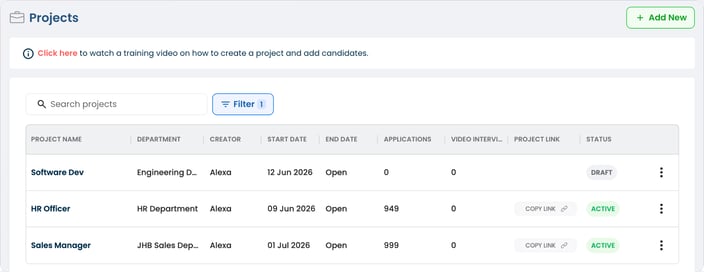
Click on Projects and you'll see a familiar view, all the projects you created ready to filter and browse with a + Create button to kick-start your next project (or + Request if the project must go through an approval request first).
Your Upgraded Project Workflow
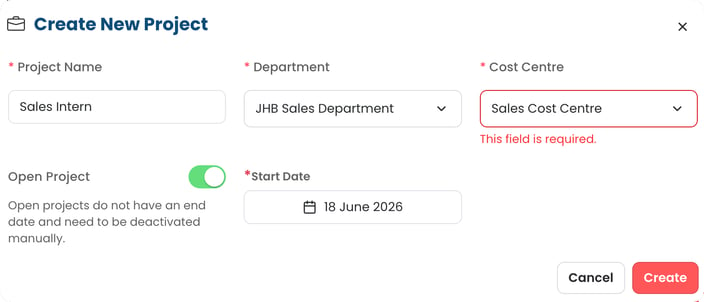
Click + Create, fill in the required details on the modal (Project Name, Department, Cost Centre, Start Date, and an End Date or Open Project), and click Create. Your draft project will automatically load and open to the Specification tab, the first of 11 tabs that guide your project setup.
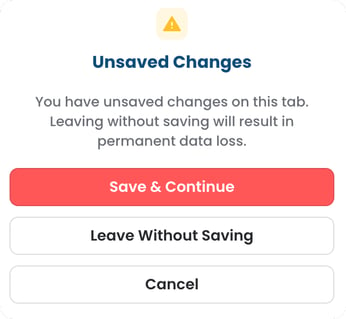
Good news: Every tab features a Save Changes button (on an active project, tabs that affect candidates show Save And Publish), allowing you to save your progress and return to finish your setup whenever you need. We will also prompt you to save before navigating away, because we're helpful like that!
Specification
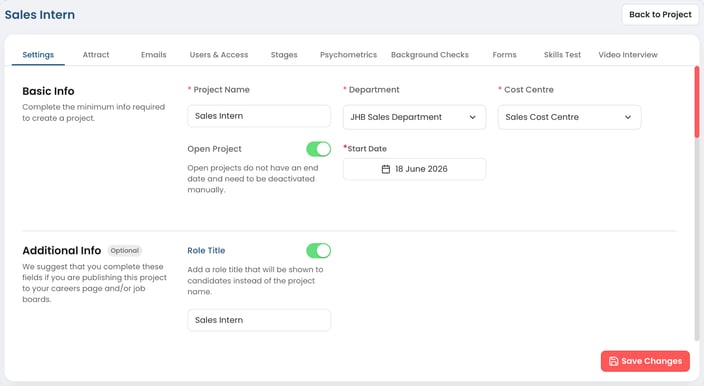
Manage the project specification, e.g. project info. The candidate landing page is now on the Attract tab and Intro Video has its own tab.
Here, you can edit the required Project Name, Department (Draft projects only) and Cost Centre fields as well as add optional details like Job Title, Job Overview, Location and Compensation.
Attract
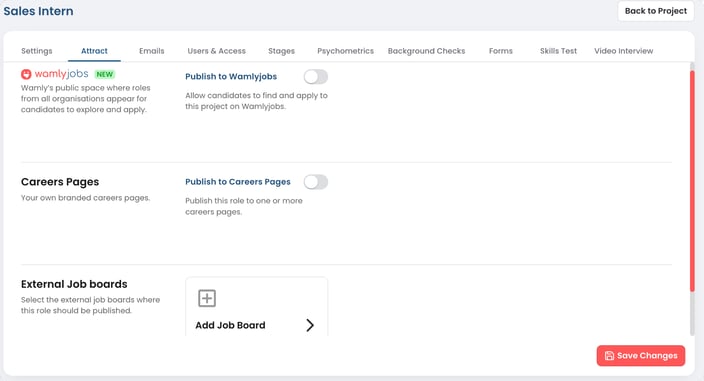
Manage your Careers Page settings, toggle job board visibility, and share your project to a job board.
Here, you can toggle visibility for Wamlyjobs and preview how your role card will appear to candidates. You can also turn on your branded Careers Page to publish your project, with the flexibility to edit role card details in real time, if you have Project Settings Edit Permission.
Finally, select the external job boards where your project should be published. Because Wamly continuously updates our external integrations, we recommend checking with your Organisation Admin to see which active configurations are currently available for your team.
Emails
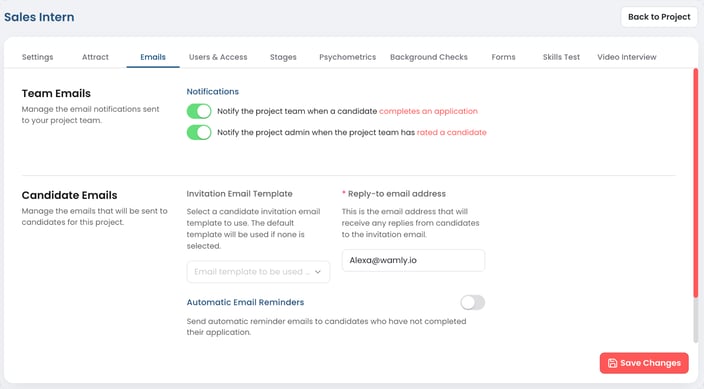
Manage all project team notifications and candidate email communications in one unified view.
- Project Team Notifications: Stay aligned by opting to notify the project team when a candidate completes an application, or automatically notify the project admin once the team has rated a candidate.
- Candidate Communications: Select a custom invitation email template to greet your applicants (the default template will apply if none is selected). You can also enable automatic reminder emails to gently prompt candidates who haven't completed their applications yet.
Users & Access
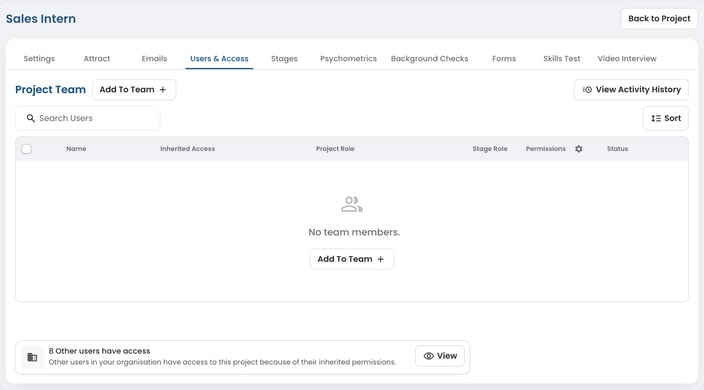
Our newly added Users & Access tab provides visibility on all users who have access to a specific project.
For total clarity, we've split this into two categories:
- Project Team: These are your active contributors. You've specifically hand-picked these people to drive the project forward.
- Others with Access: These users have "Inherited Access." They can see the project by default due to their higher-level organisational roles.
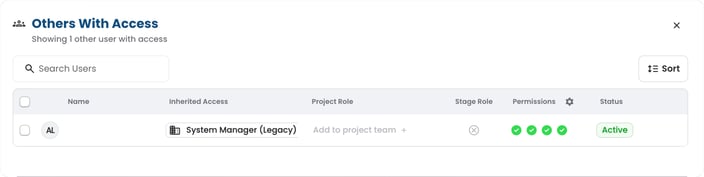
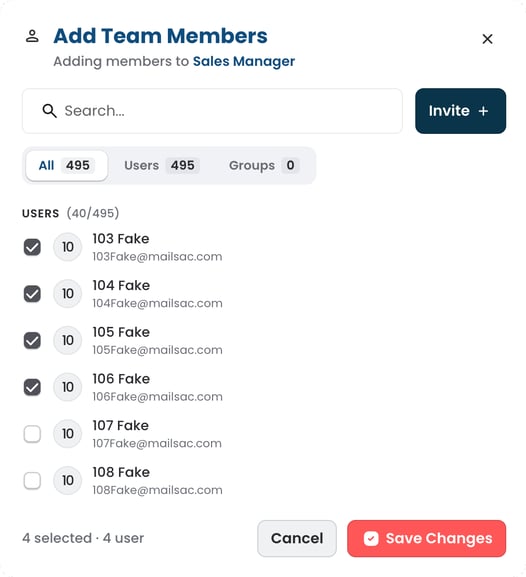
If someone is missing, Project Managers can now grant users access directly to a specific project without them needing an organisation-level role.
- Click the Add to team+ button and select the user or group you want to include. Read the step-by-step guide on granting User Access here.
- Keep in mind that their global seat type will still act as the final boundary for what they can actually do.
Stages
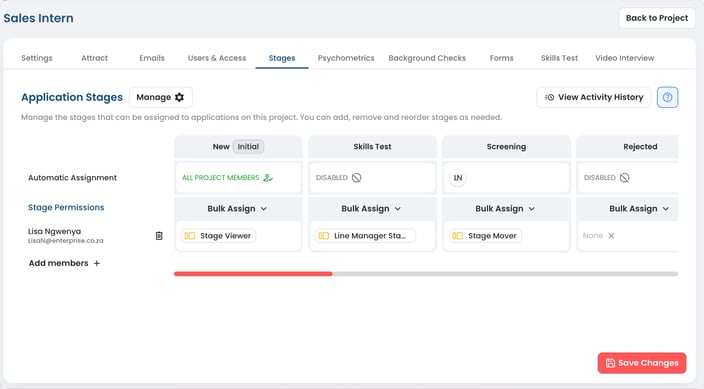
With the new permissions system, each stage can have its own access rules, so you decide exactly who gets to see and work with candidates at every point in the process. Stage-level permissions are only available on eligible (Enterprise) packages; everyone can still add, remove and reorder stages on this tab. Read more detail about Automatic Assignment and Stage Roles and team access here.
Psychometrics
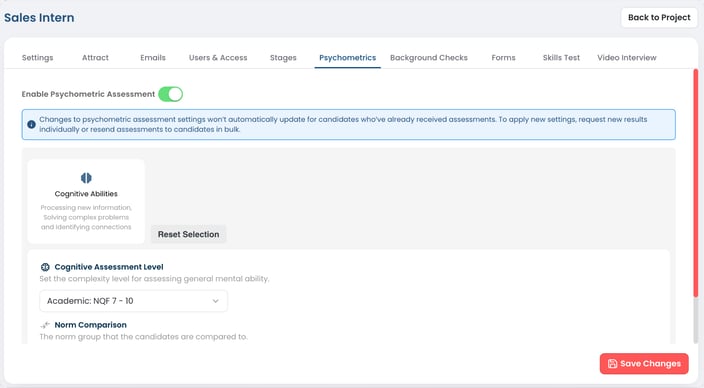
Nothing has changed here. You can still enable your chosen Psychometric Assessment in this tab. To read more about psychs click here.
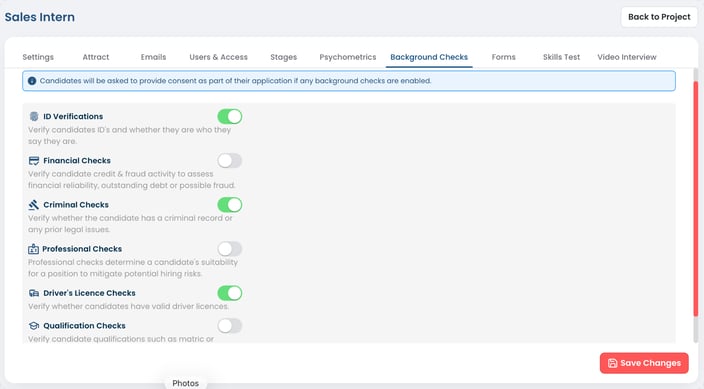
Background Checks
Nothing new here either. Toggle all relevant Background Checks for your project in seconds. If you want to know more about Background Checks, click here.
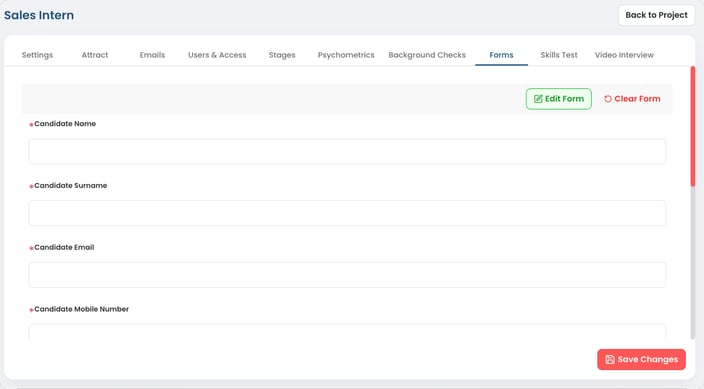
Forms
The same Form setup remains. Edit your candidate form and save your changes. To learn more about forms, click here.
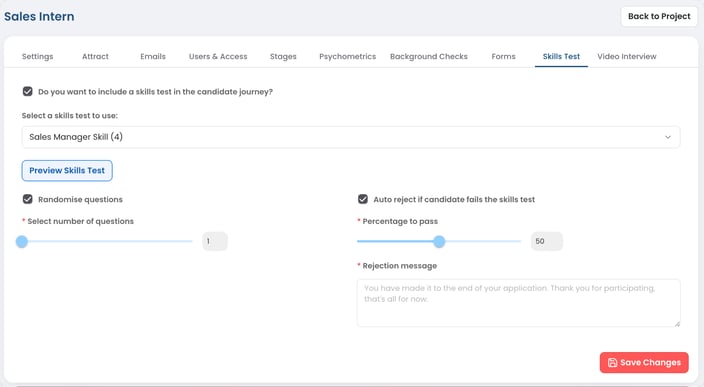
Skills Test
No changes were made to this tab. You can still enable a skills test on your project and select and manage relevant test settings including randomising questions and auto rejection rules. To read more about skills tests click here.
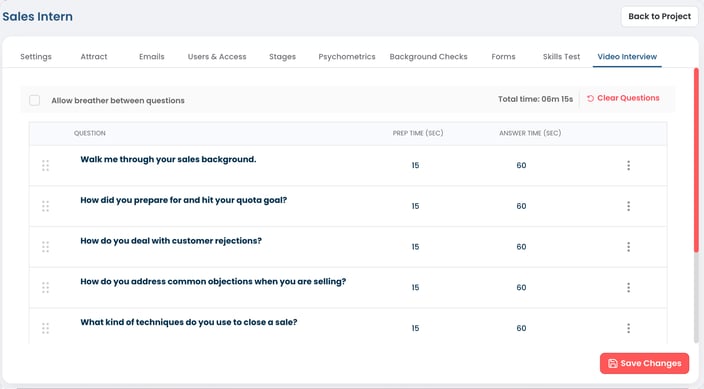
Video Interview
The video interview is optional. Switch on Enable Video Interview to add one, or leave it off to run the Project without one.
In this menu you will still be able to create your own set of questions or choose from a comprehensive example list of typical questions for a role type. You can also add new questions by clicking on the "Add Question..." option at the bottom of the question listing, exactly as before. For more information regarding Interview Guides click here.
Why can't I see this?
Hit a roadblock? If you can't access a specific feature or section, it just means your account doesn't have the required permissions yet. Because this is managed internally by your team, Wamly support can't unlock it for you. Please reach out to your Organisation Admin, they can update your permissions in just a few seconds!
Happy Hiring!
- The Wamly Product Team