
Wamlyjobs (jobs.wamly.io) is Wamly's job portal, where job seekers find your jobs and apply in Wamly. Their applications go straight into your project's hiring pipeline. This guide shows how to publish a project to Wamlyjobs, and to your own careers pages, from the project's Attract tab.
Open the Attract Tab
- Open the project you want to publish and click Edit Project, or create a new project.
- Click the Attract tab (located right next to Specification).
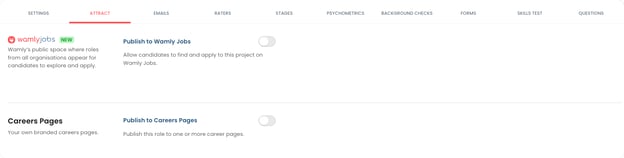
The Attract tab has four sections: Project Page, Wamlyjobs, Careers Pages and External Job boards.
Choose the Project Page
In Project Page, choose the Landing page layout your candidates land on to complete their application. You can also add a Contact Person Email Address for candidate queries; leave it empty to hide contact details.
Publish to Wamlyjobs
Step 1: Switch On Publish to Wamlyjobs
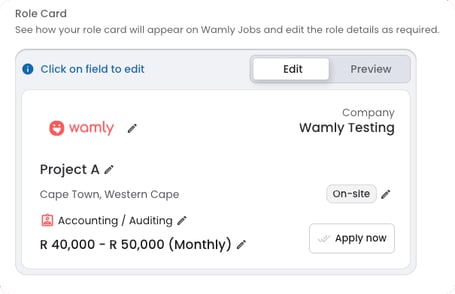
In the Wamlyjobs section, switch on Publish to Wamlyjobs. The Job Card appears. It shows exactly what your job will look like to candidates on Wamlyjobs.
If you see Publishing to Wamlyjobs is turned off, your organisation does not allow projects on Wamlyjobs. This is set under My Organisation › Project Defaults › Allow publishing to Wamlyjobs.
Step 2: Complete the Job Card
Click a field on the Job Card to edit it. Your changes are saved to the project specification, so they also show on the Specification tab.
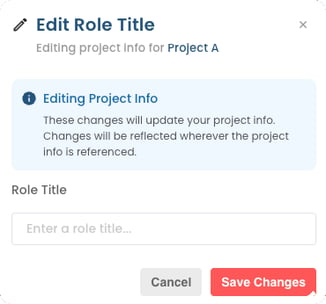
- Job Title: The title shown to candidates instead of the project name.
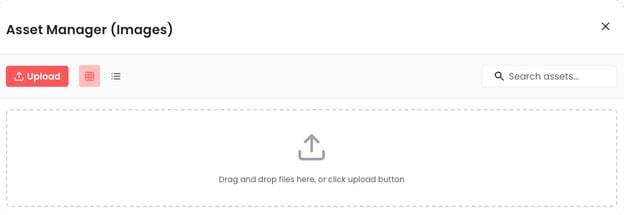
- Logo: Click the logo to choose your company logo from the Asset Manager.
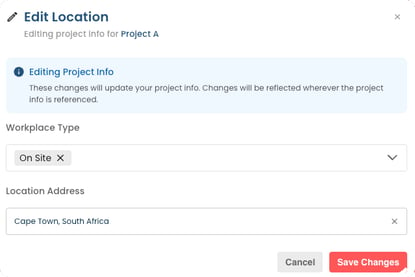
- Location: Select the Workplace Type (Hybrid, On-site, Remote) and the Location Address where the job is based.
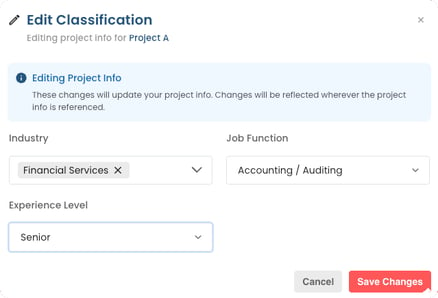
- Classification: Help candidates find and understand the job. Choose the Industry, Job Function and Experience Level.
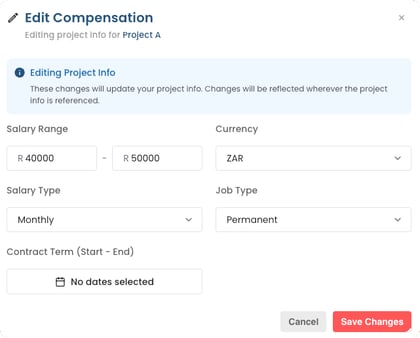
- Compensation: Choose the Currency, Salary Type and salary range, and the Employment Type. The salary is only shown to candidates if you switch on Visible To Candidates.
- Job Summary: One or two sentences shown on the job card.
A job needs a Job Title, a location and a Job Function before it can be published. Until then the section shows Required fields.
Step 3: Save and Publish
Click Save Changes. If the project is active, the job is published to Wamlyjobs and the section shows Published. If the project is not active yet, it shows Ready to be published, and the job goes live once the project is activated.
If your organisation uses approvals, changes to a published job go live once the new project spec version is published.
To take a job off Wamlyjobs, switch off Publish to Wamlyjobs and click Unpublish. All job details stay saved.
Publish to Your Careers Pages
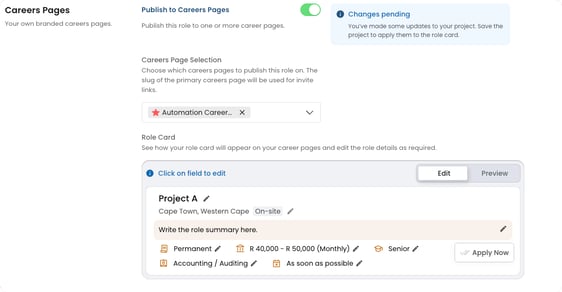
If careers pages are included in your package, switch on Publish to Careers Pages in the Careers Pages section and choose one or more careers pages. The slug of the primary careers page is used for candidate invite links. The Job Card works the same way here: click a field to edit it, then click Save Changes.
The Specification Tab
The job details also appear on the project's Specification tab, in the Basic Info and Additional Info sections. Because you have already filled them in on the Job Card, they are updated here as well.
These fields are linked to protect the integrity of your project data. Any changes made on the Specification tab update your Job Card, and vice versa.
You can use this tab to double-check that the following fields are accurate:
- Job Title: The title shown to candidates instead of the project name.
- Job Summary: A short summary shown on the job cards.
- Job Overview: A detailed description and the requirements for the job.
- Location: Where the job is based.
- Compensation: The salary or compensation package.
- Classification: Tags that help candidates find and understand the job.
Intro Video
To show candidates an intro video as the very first step of their application, use the project's Intro Video tab. See Managing Intro Videos.
If you have any questions, please contact your account manager.
The Wamly Team